How to Change Scroll Direction on a Mac
When you plug an external mouse into your Mac, you might find the scroll direction feels backwards. Or maybe you switched from Windows and muscle memory is working against you. Whatever the reason, macOS makes it easy to flip the scroll direction — with one important caveat.
How to Change Scroll Direction in macOS
macOS calls this setting Natural Scrolling. When enabled, content moves in the same direction as your fingers — like a touchscreen. When disabled, scrolling feels more like a traditional mouse wheel.
To change it:
- Open System Settings
- Go to Mouse (or Trackpad if you're using one)
- Toggle Natural scrolling on or off
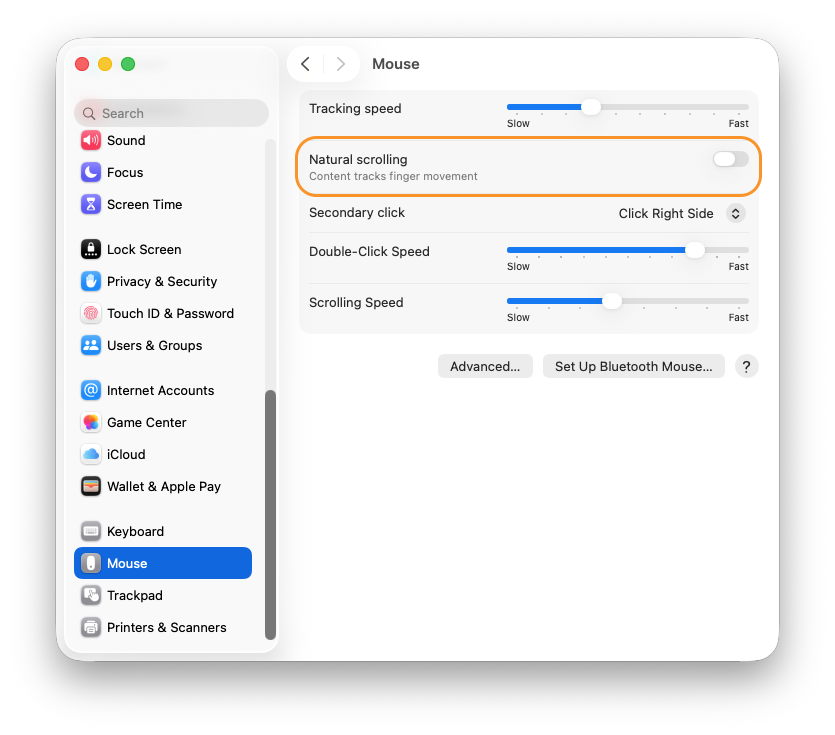
That's all it takes. The change is instant — no restart required.
The Problem: Mouse and Trackpad Share the Same Setting
Here's the frustrating part: macOS uses a single scroll direction setting for both your mouse and your trackpad. If you flip Natural Scrolling off for your mouse, your trackpad changes too — and vice versa.
This is a well-known limitation. Many people prefer Natural Scrolling on their trackpad (it matches touch gestures) but want the traditional direction on a mouse wheel. macOS gives you no native way to do this.
The Fix: Set Scroll Direction Independently with AirScroll
AirScroll is a macOS menu bar app that intercepts scroll events from your mouse before they reach the system. This means it can reverse the scroll direction only for your mouse, leaving your trackpad behavior completely untouched.
To enable it:
- Download AirScroll and open it
- Grant Accessibility permission when prompted
- Open the AirScroll menu bar icon → Settings
- In the General tab, toggle Reverse wheel direction
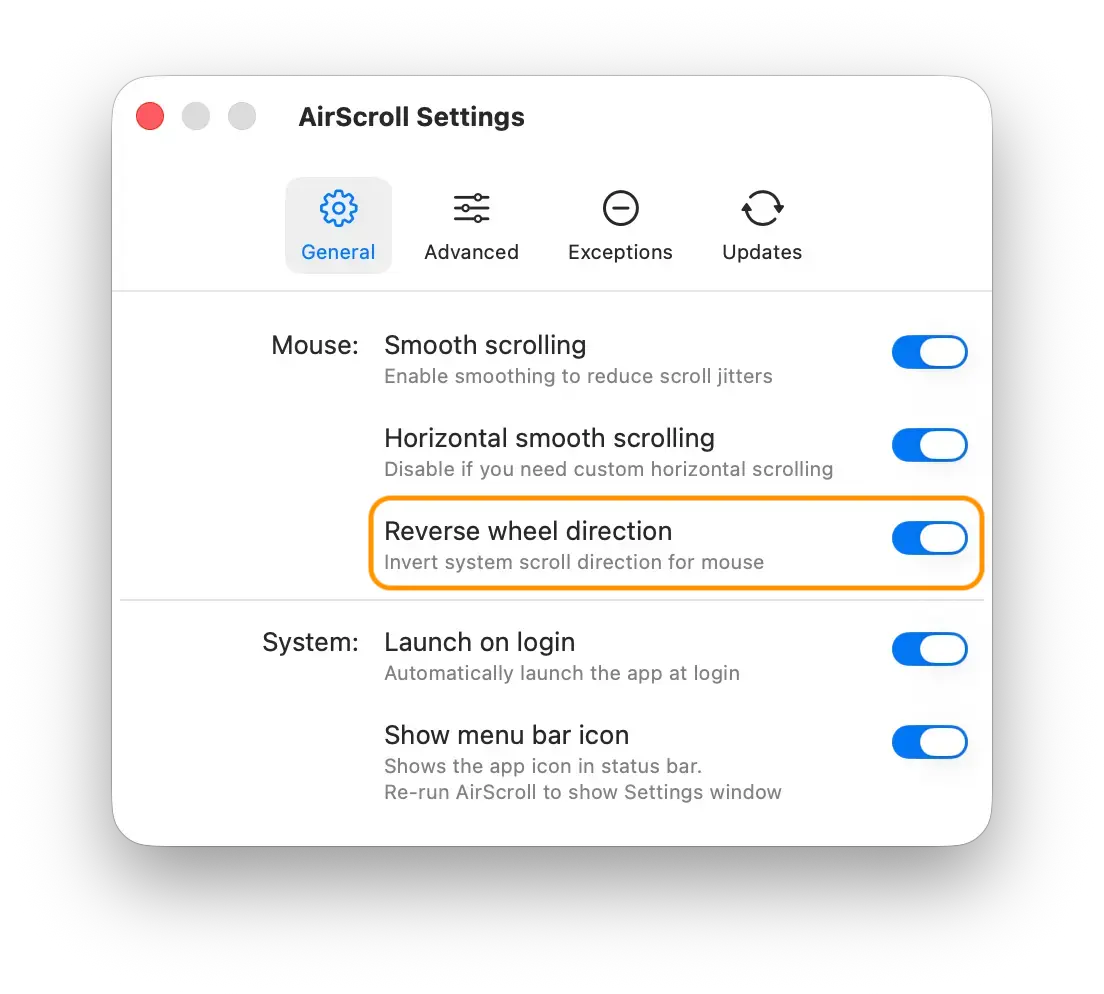
From that point on, your mouse scrolls in the direction you prefer — and your trackpad keeps its Natural Scrolling behavior exactly as you set it in System Settings.
Summary
| Scenario | Solution |
|---|---|
| Change scroll direction for everything | Toggle Natural Scrolling in System Settings |
| Change scroll direction for mouse only | Use AirScroll's Reverse wheel direction |
| Change scroll direction for trackpad only | Use AirScroll (leave system setting, toggle in AirScroll) |
AirScroll solves the one thing macOS doesn't: per-device scroll direction. It also adds smooth scrolling for external mice on top of that — see how it stacks up against other options in the best smooth scrolling apps for Mac comparison.