Setting up AirScroll for macOS
Getting started is easy. Follow the text instructions below or the video tutorial to transform your scrolling experience.
Regular installation
- Download: Download the latest version of AirScroll directly from our servers. It is a secure, notarized Apple Disk Image (.dmg) - Download AirScroll.
- Install: Open the
AirScroll.dmgfile and drag the AirScroll icon to your Applications folder. - Launch: Open AirScroll from your Applications or via Spotlight (
Cmd + Space). - Permissions: To intercept and smooth out scroll events, AirScroll needs your Accessibility Permission. The application will automatically show you a window and tell you what access you need to grant, so click
Open System Settingsand toggle AirScroll to ON.
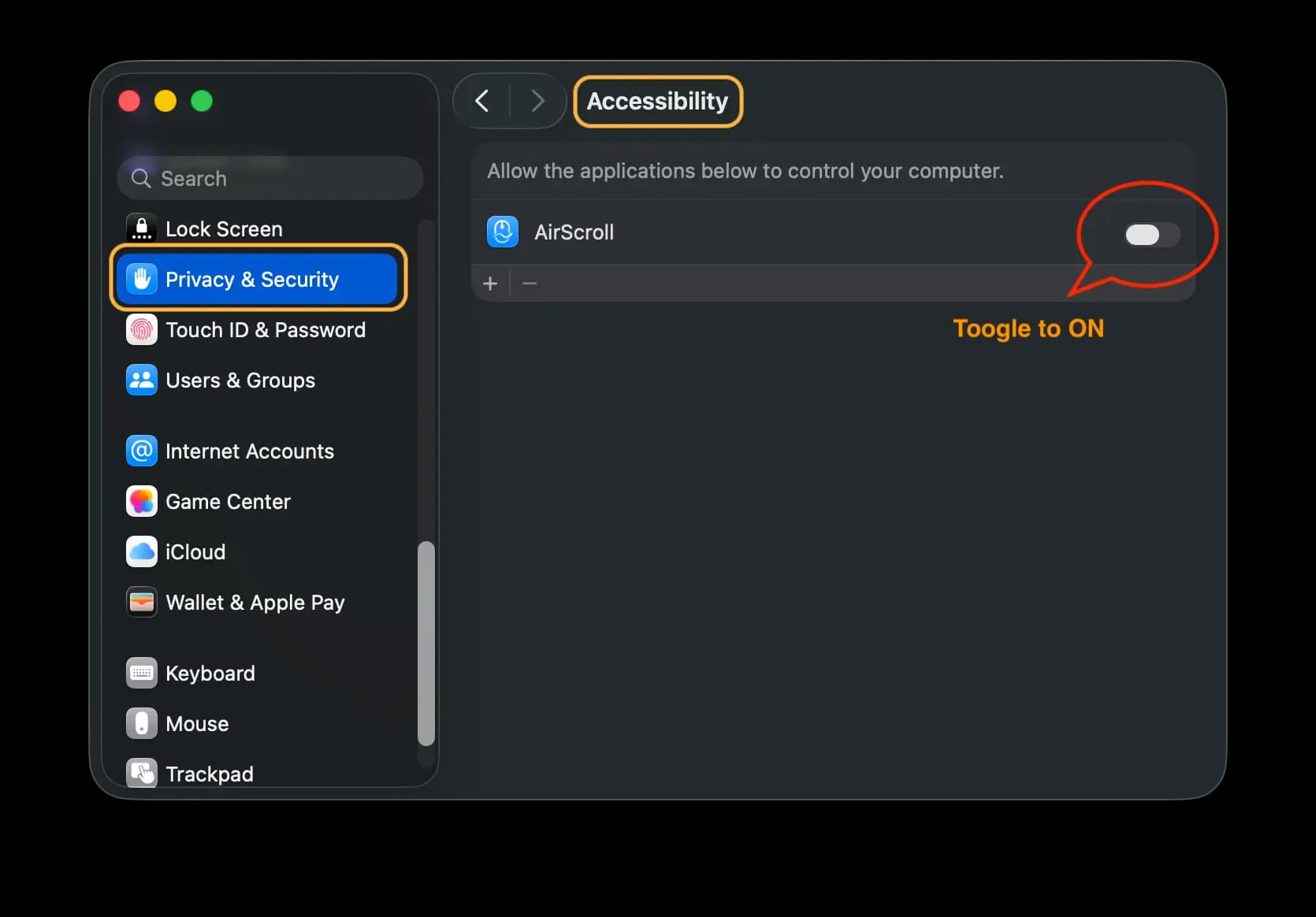
- Enjoy: Your mouse scrolling is now smooth! Look for the AirScroll icon in your Menu Bar to adjust settings.
Install via homebrew
For advanced users those who prefers the command line, install AirScroll with a single command:
$
brew install --cask airscrollLaunch → Give accessibility → Enjoy.
Troubleshooting
If scrolling doesn’t behave as expected across multiple apps or feels inconsistent, it’s usually caused by conflicts with other mouse or scroll enhancement tools. Follow the steps below to resolve common global issues.
If AirScroll does not work correctly or scrolling feels inconsistent across the system, other applications may be interfering with scroll events.
- Quit or uninstall other mouse or scroll-related utilities such as:
- Logitech Options / Logi Options+
- Scroll Reverser
- LinearMouse
- MacMouseFix
- Restart AirScroll after closing other utilities.
- Check that AirScroll is the only app with active scroll customization enabled.
- Restart your Mac if conflicts persist.
Most scrolling issues are resolved by ensuring that only one application modifies mouse scrolling behavior at a time.
Frequently Asked Questions
By default, macOS applies scroll direction globally for both mouse and trackpad. AirScroll allows you to reverse mouse scrolling independently, without changing your trackpad’s natural scrolling behavior.
If you want different scroll settings for a particular application, go to Exceptions in the settings. Click the “+” button to add the app, then press the ⚙ icon next to it to adjust custom settings like speed, acceleration specifically for that app.
If AirScroll behaves incorrectly in any application, you can easily disable it for that app. Just click the menu icon in the top bar and choose “Disable for current app”. You can also manage excluded apps in Exceptions settings from Preferences window and manually add or remove apps from the list.
Make sure Accessibility permission is enabled for AirScroll in System Settings → Privacy & Security → Accessibility. Restarting the app after granting permission usually resolves the issue.
Yes. AirScroll works with most third-party mice, including Logitech MX Master, Razer, and other USB or Bluetooth mice. It enhances scrolling regardless of the mouse brand.
AirScroll needs Accessibility permission to intercept scroll events and apply smoothing or direction changes. This access is required by macOS for apps that modify input behavior.
Yes. AirScroll does not record keystrokes, monitor screen content, or collect personal data. Accessibility access is used solely to process scroll input locally on your Mac and never leaves your device.
No. AirScroll is designed to enhance mouse scrolling only. Trackpad scrolling behavior remains unchanged unless you explicitly configure otherwise.